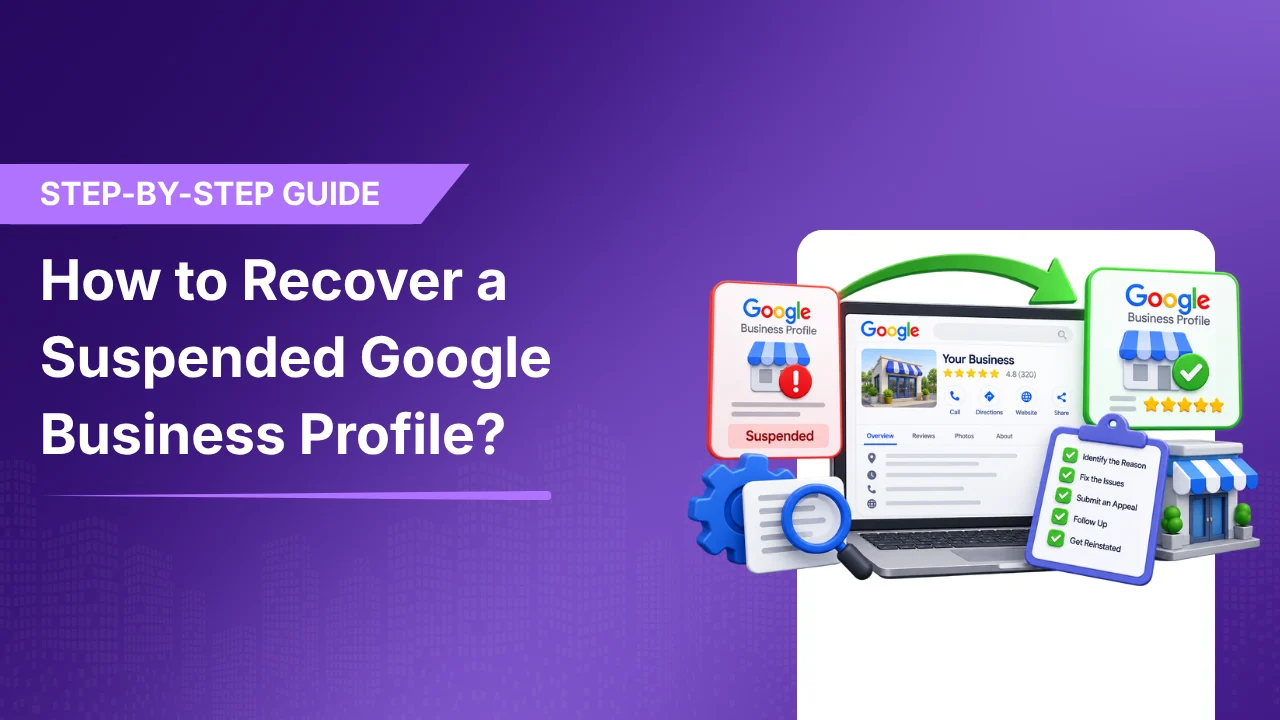
How to Recover a Suspended Google Business Profile: Step-by-Step
Want to recover a suspended Google Business Profile? Learn why your profile may have been suspended, how to fix the issue, what evidence to prepare, and how to submit a Google Business Profile reinstatement request.
Published on:
Updated on:
Published on:
Last Updated on:
Blog
Summary
Unable to load the audio. Please check the audio file URL.
Seeing “ Your Google Profile has been suspended” can be stressful and it also impacts a local business’s search visibility too. One day your business is clearly visible on Google Search and Google Maps and the next day it might be possible that the customers are no longer able to find your business on the listing, call you from it, ask for directions or visit your profile to read the reviews. A local business that is entirely dependent on Google for customer delivery, even a temporary Google Business Profile suspension can lead to lost enquiries and walk-ins.
But a suspension does not mean that your business is gone completely.
In most cases, the recovery process comes down to two things:
According to Google, business profiles can get suspended or disabled when they don’t follow the guidelines and eligible profiles can be appealed through its official appeals process.
So, in this guide we will tell you how to check even before you appeal, what evidence you should prepare and how to submit a Google Business Profile reinstatement request, and what you should avoid doing while your appeal is under review.
Why Does Google Suspend a Business Profile?
Contrary to popular belief, Google doesn’t suspend profiles because it has poor reviews, low rankings, or little activity. A suspended Google Business Profile generally means Google has detected an issue regarding the profile. It also gives information about the account managing it, the business information, or its compliance with Google’s policies.
Mainly there are 5 categories that can create problems
- Inaccurate or inconsistent business information
- Google policy violations
- Multiple listings or accounts
- Suspicious activity
- Industry-specific issues
Let’s look at all these problems step by step
Check your business name
Enter the name you currently use on Google. This quick educational check highlights common formatting issues that may need attention.
1. Inaccurate or Inconsistent Business Information
The main job of a Google Business Profile is to showcase a real business accurately. Problems can come when important information doesn’t match customers, Google, or your official business documents see elsewhere.
So pay proper attention to
- Business name
- Address
- Phone number
- Business hours
- Primary category
- Website
For example suppose your actual business is known as Austin Dental Care, but your Google Business Profile says:
Austin Dental Care | Best Dentist in Austin | Dental Hospital
The additional keywords might look normal from an SEO perspective, but they don’t really represent the business’s real-world name.
In the same way if your Google Profile shows one phone number while your website shows some other phone number,it creates an information mismatch which needs fixing before an appeal is made.
Before submitting a Google Business Profile appeal, carefully review your business information and make sure it accurately represents the real business.
Is your profile information consistent?
Use this checklist to review the information that should accurately represent your business before submitting an appeal.
2. Keyword Stuffing, Categories, and Over-Optimization
Your business names and profile shouldn’t be built around the keywords you want to rank.
Don’t add
- Location keywords
- Service keywords
- Promotional claims
- Phone numbers
- Prices
- Unnecessary symbols or emojis
Your business description should clearly explain what is your business about, what you actually do rather than becoming a list of keywords.
Your primary and secondary categories deserve the same attention. So, you need to choose your categories carefully. Choose categories that will represent your business, not the one that will generate more searches. The main aim of local SEO Optimization is to make your business easier for the audience to understand, not to make your profile look like an SEO experiment.
Review your profile language
Select the areas you have already reviewed. This helps you identify where to focus before an appeal.
3. Address, Eligibility, and Duplicate Listings
Your business location should correctly showcase how your business operates. Problem surfaces when businesses use:
- Virtual offices
- Ineligible shared locations
- Locations where they don’t actually operate
- Addresses created primarily to rank in another city
If you are a service- area business, then your business setup will be completely different too. So don’t just add a physical address only to improve rankings. You should regularly search Google Maps for duplicate listings. For example, one business shouldn’t have multiple profiles such as:
- ABC Electronics
- ABC Electronics Dallas
- ABC Electronics Main Street
- ABC Electronics Official
If these represent the same business, investigate and look for the duplicates.
Don’t respond to a Google Business Profile suspension by creating another listing.
Check for duplicate listings
Before creating a new profile, review whether another listing already represents the same business.
4. Account Access and Suspicious Changes
Review everyone who currently has access to your Google Business Profile.
This can include:
- Current employees
- Former employees
- Marketing agencies
- Freelancers
- Business partners
- Old Google accounts
You need to remove people who no longer need access and further investigate the accounts you no longer recognise.
Also, pause and think what sudden changes you made recently?
- Business name?
- Address?
- Phone number?
- Category?
- Website?
- Ownership
Major changes are fine when your business actually changes. But if major profile changes were made at once,document what changed and why before submitting your Google Business Profile reinstatement request.
Review account access and recent changes
Use this checklist to document the changes and access that may need attention before your appeal.
5. Industry-Specific and Business Eligibility Issues
Some industries have additional considerations around Business Profile eligibility and representation.
This can be specially correct for businesses such as
- Law firms
- Medical practices
- Financial services
- Locksmiths
- Contractors
- Home-service businesses
- Other regulated industries
Before appealing, confirm that your business is eligible for a Google Business Profile and that the listing correctly represents the business. Always remember every business requires a different setup.
Further, to avoid a Google Business profile, always provide accurate and up-to-date information, choose appropriate business categories, and refrain from any practices that could be perceived as manipulative or misleading. If you don’t know much about listing, then it is advisable to consult Google’s guidelines or seek assistance from a professional who specializes in local SEO and Google Business Profile management.
Check your business eligibility
Review the areas that may need additional attention depending on your business type and how it operates.
Bringing a Suspended Business Profile in Line With Google’s Guidelines
The most common cause of Google Listing Blocking not adhering to Google’s guidelines. Now we will discuss certain things that you need to keep in mind to avoid Google Listing Blocking
Name of your business profile in Google Maps
Keep the business name similar to what your customer knows of you. This is your name in your business register, on your signboard, flyers, and company materials, and the name by which your customers know you.
What does this actually mean?
Set your legitimate business name similar to the one in the official business registration or on the signboard of your business for the duration of the blockade removal
Remove all keywords from the name
Remove phone numbers and prices from the name
Remove emoji and unnecessary special characters from the name
The business name must not contain whole words in capital letters (except for abbreviated names like KFC- Kentucky Fried Chicken)
Final guideline review
Confirm that the most important profile details have been reviewed before you submit your reinstatement request.
Suspended Google business profile blocking appeal
If your business profile follows Google’s guidelines, then it’s time to write an effective blocking appeal. Head to this link to access the appropriate business reinstatement form:
Access the official Google Business Profile reinstatement form.
Open reinstatement form →All you need to do is answer all the questions and then write an appeal.
Prepare your appeal
Use this checklist to organize the information and evidence you may need before submitting your reinstatement request.
Example: Google Business Profile appeal email
Enter your business details to generate a clear, professional appeal example. This is an educational template, not a guarantee of reinstatement.
Your appeal example
How long will it take to unblock my Google Business Profile?
At present the Google support team keeps two weeks to consider the appeals. Often, however, the block is removed quickly.
Suppose your Google profile has been brought into compliance with Google’s Content Policy, and you have provided all the required information as well. In that case, you should receive information about removing the block after the first contact with support.
What should you do while waiting?
Expand each step to review the next actions mentioned in this guide.
Make sure the information in your appeal is accurate and consistent with your business details.
If Google asks for extra information to authenticate your business profile, prepare the required documents and respond to the request.
Continue to ensure your business information accurately represents the business while your appeal is under review.
Choose the appeal process that matches your situation
Not every suspension follows the same route. Start with the option that matches the message or decision shown in your Google Business Profile.
My Business Profile is suspended
Use this route when Google has suspended or disabled the Business Profile itself and you want to request reinstatement.
Follow the profile appeal stepsMy Google account is restricted
Use this route when the account managing your Business Profile has been restricted and you cannot manage or create other profiles.
Follow the account restriction stepsMy appeal was denied
If your reinstatement request was denied, you may be able to submit an additional review with evidence that was not included previously.
Follow the additional review stepsI manage more than 10 profiles
If you need to appeal for more than 10 Business Profiles, Google provides a separate spreadsheet-based process for submitting the appeals.
Follow the bulk appeal steps1. How to appeal a suspended Business Profile
This is the main process for a suspended or disabled profile. Follow each step in order before moving to the next one.
Profile reinstatement walkthrough
Step 1 of 5Open the Google Business Profile appeals tool
Start by opening Google’s official appeals tool. Make sure you are signed in to the Google account associated with the Business Profile you want to appeal.
Open the official appeal tool Visit the Google Business Profile appeals tool.
Use the correct Google account Sign in to the account that manages the suspended Business Profile.
Confirm the account you want to use
Google may first ask you to confirm the account currently signed in. If this is the account connected to your suspended profile, select Confirm. If you need to use another account, select Switch account.
Check the signed-in account Make sure it is the account related to the profile you want to appeal.
Confirm or switch accounts Select Confirm if the account is correct, or Switch account if it is not.
Select the Business Profile you want to appeal
The appeals tool will show the Business Profiles associated with your account. Select the profile that you want to reinstate and continue.
Find the correct profile Select the Business Profile that has been suspended or disabled.
Check the moderation details Review the restriction reason and the policy link shown by the tool.
Continue to the appeal Select Continue after choosing the correct profile.
Review the reason and submit your appeal
The appeals tool will show the restricted profile, the reason for the moderation action, and a link to the policy that may have been violated. Review these details carefully before submitting.
Review the moderation reason Understand what Google has identified as the issue.
Check the policy link Review the relevant policy and make sure the profile follows it.
Select Submit Appeal Use the button at the bottom right of the appeals tool.
Select Submit Confirm that you want to send the appeal for review.
Add evidence to support your appeal
If Google gives you the option to submit evidence, use it. After submitting the appeal, select Add evidence and upload documents that help prove the business is legitimate and eligible.
Select Add evidence Open the evidence form after submitting the appeal.
Review your business details Check that the business name and address match the profile.
Upload your documents Select Choose file and attach the relevant evidence.
Add additional context Explain why you believe the profile should be reinstated.
Select Submit Send the evidence through the form.
What evidence should you prepare before appealing?
The strongest evidence is documentation that helps confirm your business identity and shows that the information on your profile is accurate.
Evidence preparation checklist
Use this checklist before opening the evidence form.
2. How to appeal when your Google account is restricted
This process is different from a normal Business Profile suspension. If your account is restricted, you may be unable to manage your profiles or create new ones.
Account restriction appeal
Separate account-level processOpen your Google My Account page Go to the account settings page associated with the restricted account.
Find the restriction appeal option Google provides an option to submit a reason and appeal the account restriction.
Explain why the restriction should be lifted Provide the requested information and submit the account appeal.
Wait for the account decision Once the restriction is lifted, you can proceed with the Business Profile suspension appeal.
Where to go: Open Google My Account →
3. How to request an additional review after a denied appeal
If your reinstatement request has been denied, Google may allow you to submit an additional review. This is not the same as submitting the original appeal again.
Additional review process
For denied requestsConfirm that your original appeal was denied Additional review is available only when the reinstatement request has been denied.
Open the additional review option Use the option provided by Google to submit an additional review of the denied request.
Prepare new supporting evidence Add evidence that was not included with the original appeal.
Submit the additional review Follow the instructions in the form and submit the new evidence.
4. How to appeal more than 10 Business Profiles
If you manage multiple profiles and need to appeal for more than 10 Business Profiles, Google provides a separate bulk appeal process.
Bulk appeal process
For more than 10 profilesOpen the Google Business Profile appeals tool Sign in to the Google account associated with your Business Profiles.
Select the Business Profile you want to appeal Choose one of the profiles from the appeals tool.
Submit the appeal After submitting, you may be asked whether the appeal is for more than 10 profiles.
Select Yes and attach the spreadsheet The spreadsheet should include the evidence and Business Profile ID for each profile.
Select Submit Send the bulk appeal through the tool.
Do not create a new Business Profile while your appeal is under review. Google specifically advises against creating a new profile for the same business during this process.
How to check the status of your appeal
After submitting your appeal, you can return to the appeals tool to check the status of the profile you appealed.
Open the appeals tool Sign in to the Google account related to your Business Profile.
Select the profile Choose the Business Profile for which you submitted the appeal.
Check the status The tool may show Submitted, Approved, Not Approved, Can’t be appealed, or Eligible for appeal.
Official Google Business Profile appeals tool:
Open the official appeals toolHow to further reduce the waiting time for block removal?
Sometimes a Google employee might also ask for extra information to authenticate your business profile in response to a blocking appeal. Sometimes, it also extends the time when your business profile is locked, and cannot get new customers for you. You can give a warning to Google’s team and provide additional evidence in advance too. All you need to do is reply to the acceptance mail.
To ensure your appeal is processed easily, upload the evidence properly.
Final Thoughts
We all are aware that many business owners rely on Google’s Business Profile and it becomes very stressful when they get a message that says “business profile has been suspended.” Such downtime in reaching new customers is often associated with financial losses for the entrepreneur. That’s why it’s worth paying a lot of attention to aligning your business profile with Google’s guidelines to keep support contact time to a minimum.

Recent Blogs
-
Why You’re Losing to Competitors
Every Month Your GBP Sits Outdated, Here’s What You’re Losing…
-
Google Search Console Multimodal Search
Google Search Console’s New Multimodal Search Data: What It Means…