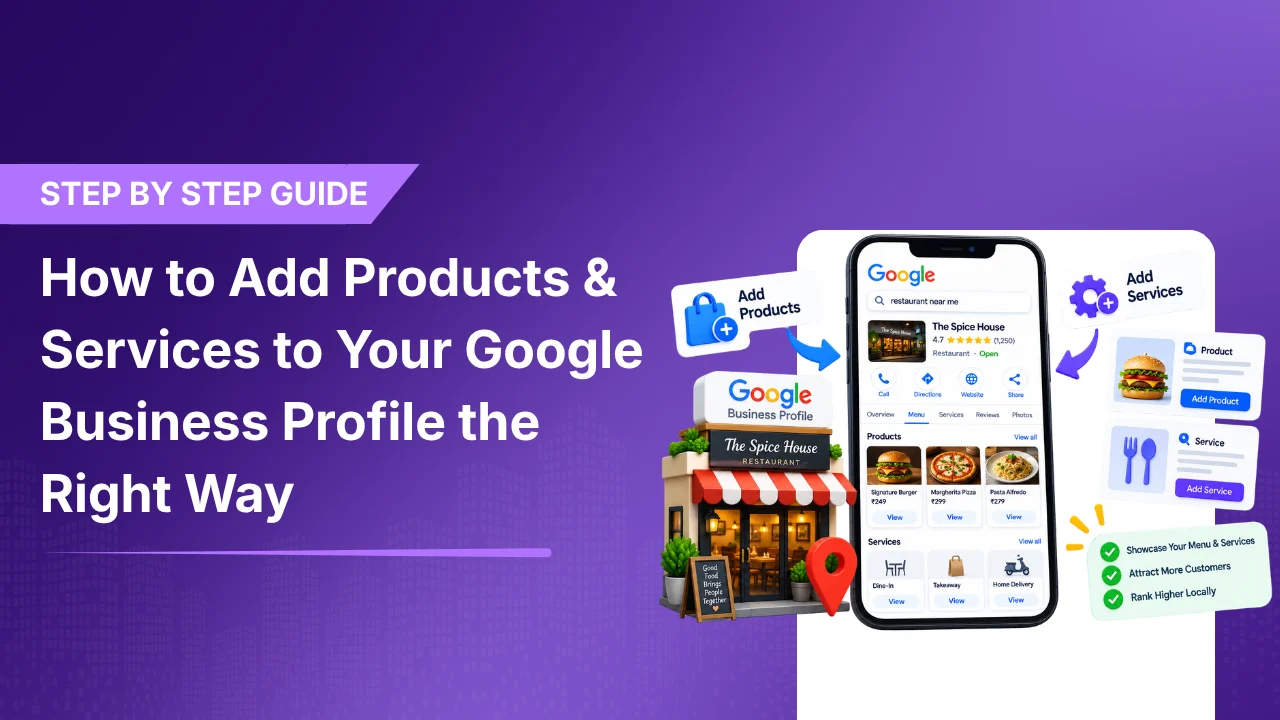
How to Add Products & Services to Your Google Business Profile the Right Way
Your Google Business Profile is often the first place potential customers discover your business, so providing accurate information about your products and services can help them understand what you offer do.
Published on:
Updated on:
Published on:
Last Updated on:
Blog
Summary
Unable to load the audio. Please check the audio file URL.
Your Google Business Profile is more so often the first place potential customers see your business. Before actually visiting your business, or going to your store GBP provides additional information that will help the potential customers to choose your product instead of your competitor’s. And by providing details about your products and services, you are directly providing Google details about your organisation as a named entity.
This is why keeping your Google Business Profile complete and accurate matters. One of the most important ways through which you can improve your profile is by adding your products and services correctly.
So, in this blog, we will tell you what information to include, common mistakes to avoid, and how they can support your local SEO strategy.
Why Products and Services Matter
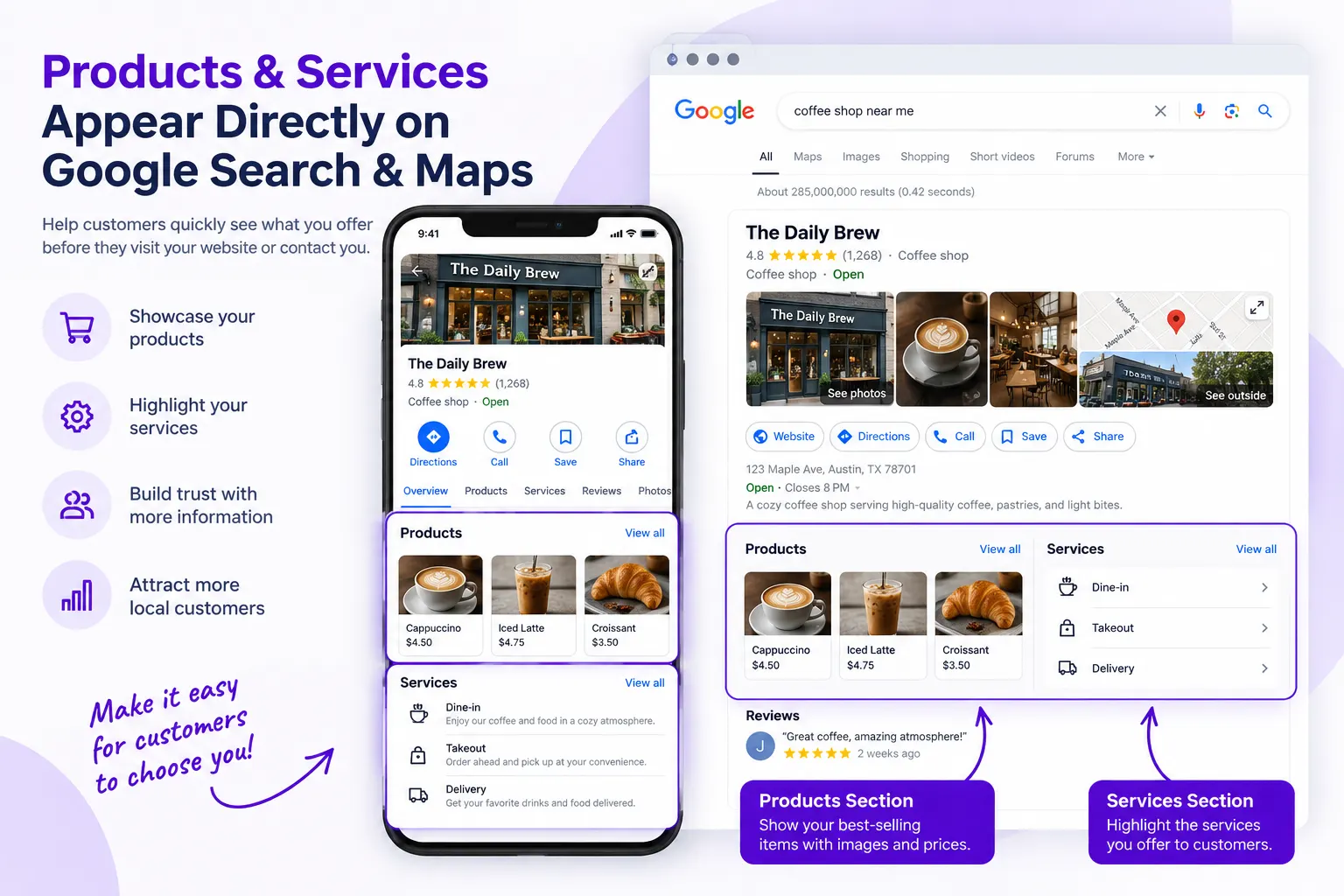
When customers search on Google or Maps, they want fast answers. For example imagine someone searching for a dentist may want to know whether the business offers implants. Or imagine a customer looking for a clothing store may want to know what products are available. Your potential customers get more information about your products and services directly on your business profile.
A salon could list services such as:
- Haircuts
- Hair Coloring
- Facials
- Manicures
- Bridal Makeup
A retail store could add products such as:
- Shoes
- Jackets
- Dresses
- Bags
- Accessories
Quick Interactive: Category or Product?
See how products should be organized inside logical categories.
Example Products
How to Add Products to Your Google Business Profile
Adding products is easy.
Open Your Business Profile
Sign in to the Google account connected to your business.
Search for your business on Google and open your Business Profile management options.
Find Products
You need to look for the product option in your Google Profile Management Area. The option can change depending on your business category and Google’s current interface.
Add Product Information
Enter the information requested by Google.
This may include:
- Product name
- Category
- Price
- Description
- Image
Use Clear Names
Don’t give unusual or complicated names to your product. If you sell shoes use an easy name such as Men’s Running Shoes rather than using a long difficult set of keywords.
Your customers should immediately understand what the product is.
Category: How Google Organizes Your Products
When you add a product to your Google Business Profile, you can place it under a Category. The main use of category is used to group similar products together, making your product listings easier for customers to browse.
For example, if a clothing store is adding products to its profile, it can give:
- Men’s Clothing
- Women’s Clothing
- Footwear
- Accessories
A store could then add individual products under the relevant category. For example, Men’s Running Shoes, Formal Shoes, and Casual Sneakers could be grouped under Footwear.
The important thing is that the category should correctly show the products being added. You don’t need to create a separate category for every product.
Category = the group
Product = the individual item
So, if Footwear is the category, Men’s Running Shoes is the product.
When adding products, use categories to create a logical structure rather than using them as another place to add keywords. A well-organized category structure makes it easier for customers to understand your product range and find related products within your Google Business Profile.
How to Add Services to Your Google Business Profile
If your business provides services too, then also the process is completely similar.
Open Your Profile
Use the google account that manages your business.
Select Services
Open the Services section of your Business Profile.
Google may suggest services based on your business category.
Choose Relevant Services
Add only those services that your business provides.
- SEO
- Advertising
- Branding
- Design
- Consulting
- Marketing
Add Descriptions
Wherever possible, add short descriptions explaining what each service provides. Avoid stuffing descriptions with useless keywords. Remember, you need to write for people first.
Which types of business have access to GBP Services?
If the listing has access to ‘Services’, you’ll see it in the menu when you log into your Google Business Profile dashboard on a desktop.
It also appears on the “info” tab.
How Well Are Your Products & Services Set Up?
Use this quick checklist to see whether your Google Business Profile gives customers useful and accurate information.
How to Optimize Products and Services
Simply adding information isn’t enough.
Your listings should be organized and useful.
Use Relevant Keywords
Keywords can help communicate what your business does.
A local bakery could naturally use terms such as:
- Bakery
- Cakes
- Bread
- Desserts
- Catering
Don’t repeat the same keyword unnecessarily.
Keep Information Accurate
Your Google Post should talk about what customers actually experience. If you don’t offer any particular service, remove it. If a product is discontinued, then you need to update your listing. Accuracy is more important than having a large number of listings.
Add Quality Images
For images, products you can make your listings more appealing. But you need to upload clear photos that can clearly represent what you sell. Avoid using irrelevant or misleading images.
Organize Services Properly
Don’t put every offering under only one service. For example, instead of listing only:
you could separate relevant offerings into:
- SEO
- Advertising
- Social Media
- Branding
- Web Design
This makes your profile easier to understand.
How to Optimize Google Business Profile
Adding products and services is only one part of the Business Profile optimization. A complete and accurate Google Business Profile increases your chances of being chosen by the potential customers and also helps Google to know what your business offers.
The 1st step is to make sure your basic business information is correct. Your business name, address, phone number, website, and hours should reflect your current information.
Choose the most relevant Category for your business and add appropriate secondary categories where applicable.
You can also add high quality photos that clearly show your location, products, team, and services.
Regularly update your Products and Services so customers don’t see outdated information.
You also need to give attention to your google reviews. Always respond properly to genuine customer feedback professionally, whether it is positive or negative.
Keeping your Profile active, accurate, and useful is an important part of a broader Local SEO strategy.
Don’t Add Products and Services Just to Fill the Profile
One common mistake every business makes is adding as many products and services as they can, just because they have the option available. But more listings don’t automatically mean a better Google Business Profile.
For example, think about a dental practice that offers general dentistry as well as specialized treatments.
Instead of just adding every small procedure individually, the practice should talk about the services patients actually want, such as:
- Dental Cleaning
- Teeth Whitening
- Dental Implants
- Root Canal Treatment
- Dental Crowns
- Braces
There are no advantages in creating multiple listings for services that are actually the same.
A dental practice doesn’t need separate entries such as “Affordable Teeth Cleaning,” “Best Teeth Cleaning,” “Teeth Cleaning Near Me,” and “Professional Teeth Cleaning.”
These are not different services. They are simply different keyword variations of the same service.
The main aim should be to make the service section easy and clear so that a patient can quickly understand what the dental practice actually provides.
Add the services that matter to your patients, not every possible variation of a service.
Interactive Example: Are These Actually Different Services?
Imagine a business offers Teeth Whitening. Which of the following are genuinely different services?
Don’t Create Multiple Listings for the Same Service
Don’t make your service section messy by creating multiple versions of the same service.
For example, if you offer dental service you can give:
You don’t need to create separate or individual listings for:
- Teeth Whitening
- Teeth Whitening Services
- Affordable Teeth Whitening
- Professional Teeth Whitening
- Teeth Whitening Dentist
- Teeth Whitening Near Me
These aren’t six different services.
They’re simply various ways of describing the same treatment. This same method applies to other dental treatments too such as Dental Cleaning, Dental Implants, Root Canal Treatment, or Dental Crowns.
This keeps your Google Business Profile clean, relevant, and easier for potential patients to understand.
Add the Products Customers Actually Care About
If your business sells multiple products, deciding what to add can be difficult.
You don’t have to start by adding everything at once. Instead, identify the products that are most useful for someone knowing about your business for the first time.
A clothing store could prioritize:
- New arrivals
- Best-selling items
- Seasonal collections
- Popular categories
- Products with strong demand
A furniture store could highlight:
- Sofas
- Dining tables
- Bedroom sets
- Mattresses
- Office furniture
An electronics store could showcase:
- Smartphones
- Laptops
- Televisions
- Headphones
- Smartwatches
This gives customers an easy understanding of what the product is about. You can expand your product list later.
Use Customer Questions to Decide What to Add
Here’s how you can know about missing services. If customers normally ask:
and you provide that service, it should be clearly stated.
and if you actually sell that product, then definitely add that product.
Your customers are actually telling you about the services they need from you.
Use those questions to improve your listings.
This makes your Google Business Profile more useful without guessing what information people want.
Organize Your Products Into Logical Categories
If your business has several products, categories can make the Products section easier to navigate.
Men’s Clothing
- Shirts
- Jeans
- Jackets
Women’s Clothing
- Dresses
- Tops
- Jeans
Accessories
- Bags
- Belts
- Wallets
The exact options available can depend on Google’s features for your business.
The important point is to keep your products logically organized.
A customer shouldn’t have to scroll through an unrelated list of products to find what they’re looking for.
Final Thoughts
Adding products and services to your Google Business Profile doesn’t mean you have to fill every field or add dozens of listings.
What really matters is giving potential customers accurate and useful information about what your business offers.
Use clear product and service names, group products into relevant Categories, add Prices when applicable, write descriptions that actually tell customers something useful, and use images that show the real product.
At the same time, avoid duplicate listings, keyword stuffing, or adding products and services that you don’t actually offer.
The easiest way to get this right is to look at your profile from a customer’s perspective. When someone finds your business on Google or Maps, can they quickly understand what you sell or what services you provide?
If they have to visit another website just to figure out the basics, there’s probably more you can add or improve.
A clear and well-organized Products and Services section makes your Google Business Profile more useful for customers and can also support your Local SEO efforts.
Add the right information to help customers understand your business, find what they need, and choose you with confidence.

Recent Blogs
-
Why You’re Losing to Competitors
Every Month Your GBP Sits Outdated, Here’s What You’re Losing…
-
Google Search Console Multimodal Search
Google Search Console’s New Multimodal Search Data: What It Means…